1. Quick Start: Begin Your Privacy Protection Journey
Welcome to ChaBox! This is an "offline digital safe" specifically designed to protect your personal and highly sensitive data, such as ID photos, financial statements, private diaries, and various credentials.
1.1 Understanding Your Dashboard
When you open ChaBox, you are greeted by a fully functional dashboard. To make daily operations clean and efficient, the user interface is structured into distinct, intuitive sections:
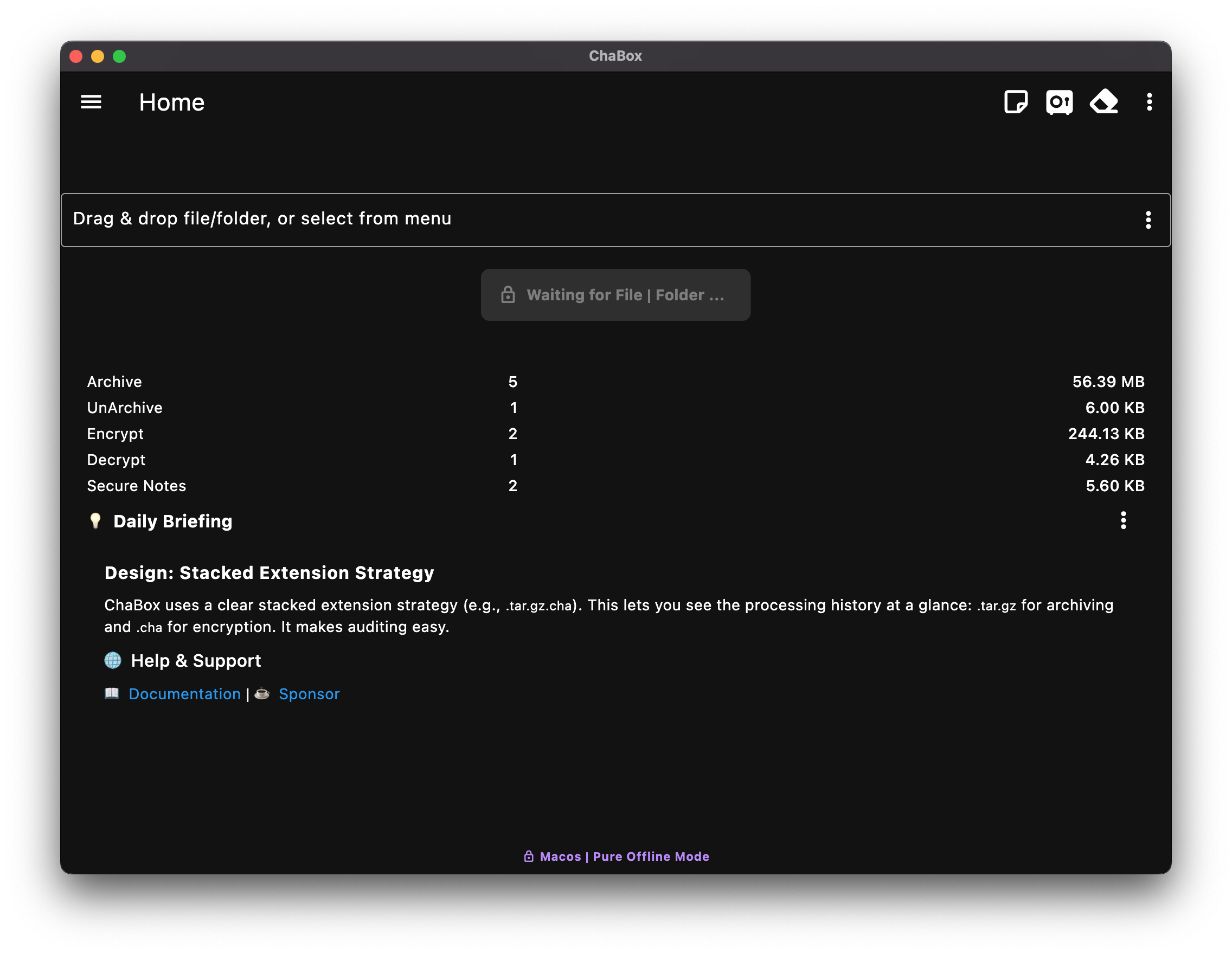
- Top Toolbar (AppBar): The top-left corner gathers quick-access buttons for high-frequency tools (Secure Notes, File Vault, and Secure Erase) along with a dropdown menu for additional features.
- Left Drawer Menu: Clicking the three-line menu icon in the top-left slides out the global configuration center. Here, you can change languages, manage passwords (import/export), and configure physical output directories.
- Main Workspace (Body):
- Upper - Convenient Encrypt/Decrypt Section: The core interaction area. Simply drag and drop files here, and the system will automatically sense the file type to adjust its operation.
- Middle - Data Statistics Section: Provides a real-time visual count and status of files within your encrypted directories and vaults.
- Lower - Daily Briefing Section: Displays security reminders, usage tips, and daily updates.
1.2 Convenient One-Click Encryption/Decryption
"Convenience" is the hallmark of the home screen's one-click encryption and decryption feature. Powered by smart sensing, you do not need to manually toggle modes:
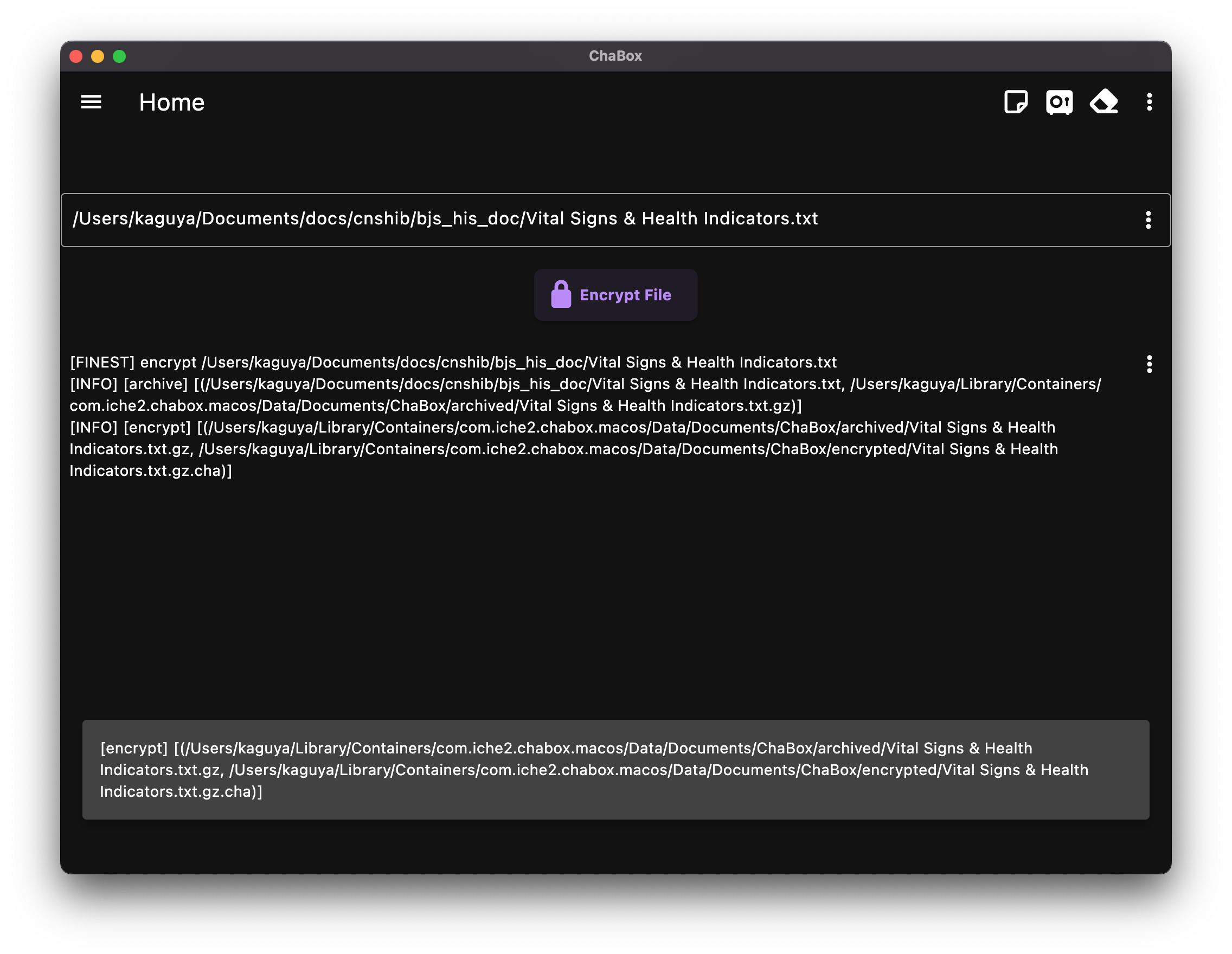
- Seamless Encryption: Directly drag and drop the files or folders you want to protect onto the home screen. The software automatically recognizes plaintext files, and the main button switches to "Encrypt Selected". Clicking it completes the process.
- Beginner Tip: If you drag in a folder, ChaBox will automatically package and compress it, producing a
.chaencrypted archive. - Passive Decryption Learning: Once you have an encrypted
.chafile, decrypting it is just as intuitive. Simply drag that.chafile back onto the home screen, and the button will automatically switch to "Decrypt Selected". Learn encryption once, and decryption becomes second nature.
- Beginner Tip: If you drag in a folder, ChaBox will automatically package and compress it, producing a
1.3 Notes: Your Private Secure Notes
ChaBox provides a powerful private notepad feature (available on both desktop and mobile apps).
- Independent Local Storage (Security Core): All your notes are saved as highly encrypted files directly on your own device, completely independent of any third-party cloud. Your privacy remains physically under your absolute control.
- Immersive Markdown Writing: Features a clean, distraction-free Markdown editor with real-time autosave. During editing and previewing, the text is processed strictly in secure memory, minimizing any plaintext footprints on your physical drive.
- Variable Placeholder Enhancement: Markdown supports built-in app variables and custom variables, allowing centralized management of image paths and web links. During cross-platform migration, you can quickly adapt content by updating variables only.
- Encrypted Embedded Image Enhancement: Markdown supports encrypted images from both local files and remote HTTP sources, so note content and attached images can stay under the same encrypted protection model.
- Real-Time Layout Preview: Switch easily to preview mode to inspect your formatting, optimized to display beautifully across all screen sizes.
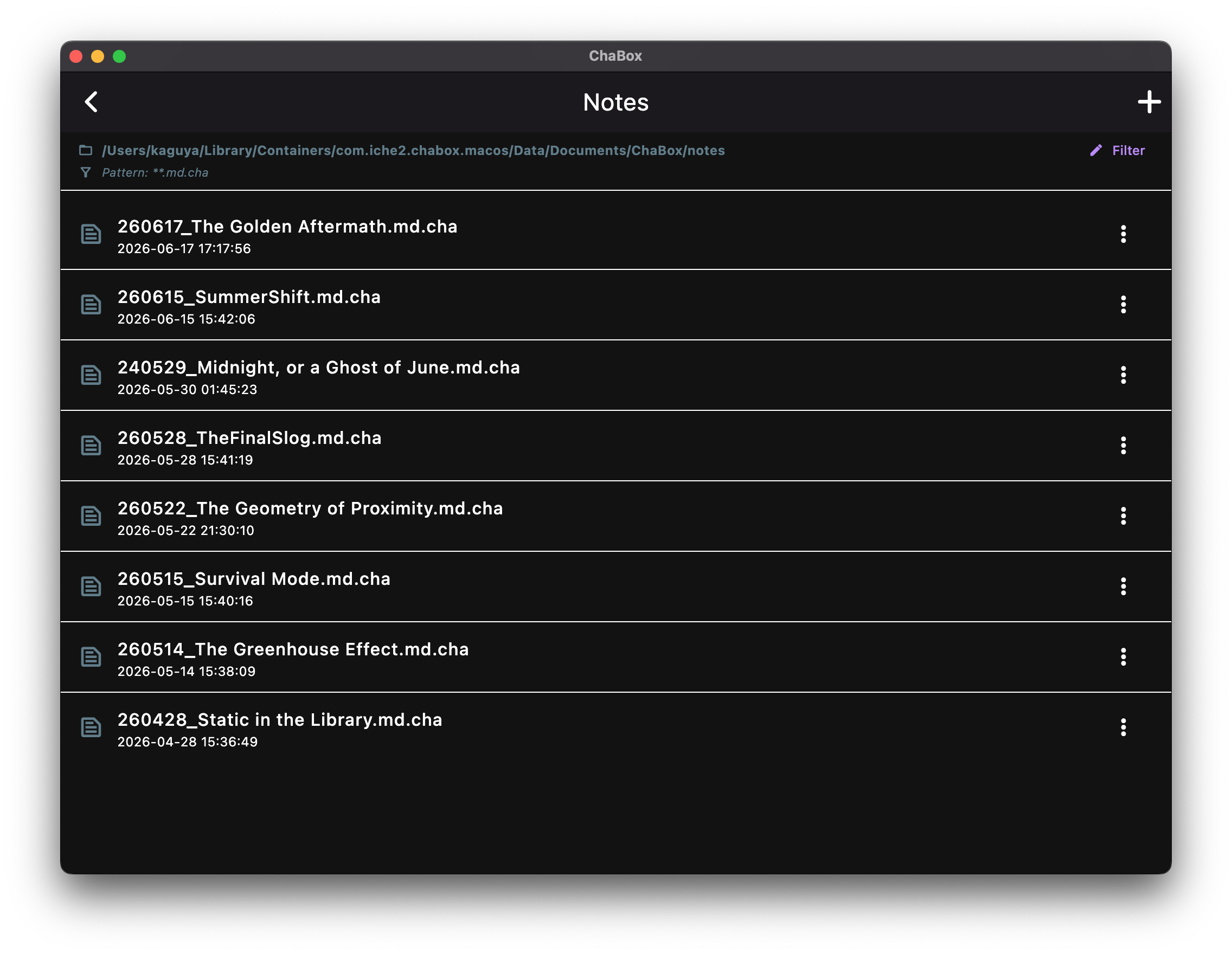 Tip: On the Secure Notes list page, click the "+" button in the top-left corner to create a new entry.
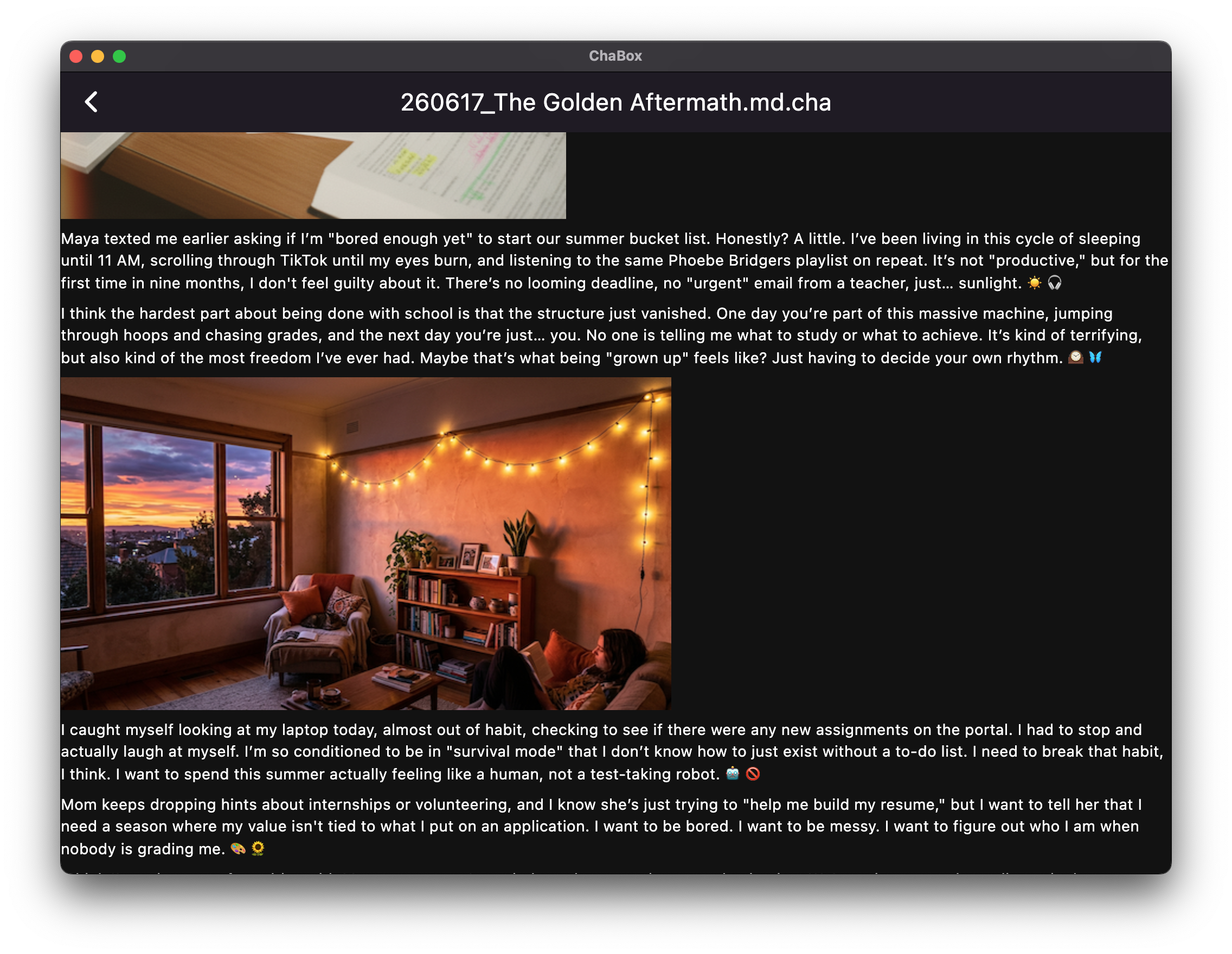 Preview mode displays your Markdown layouts with clean typography.
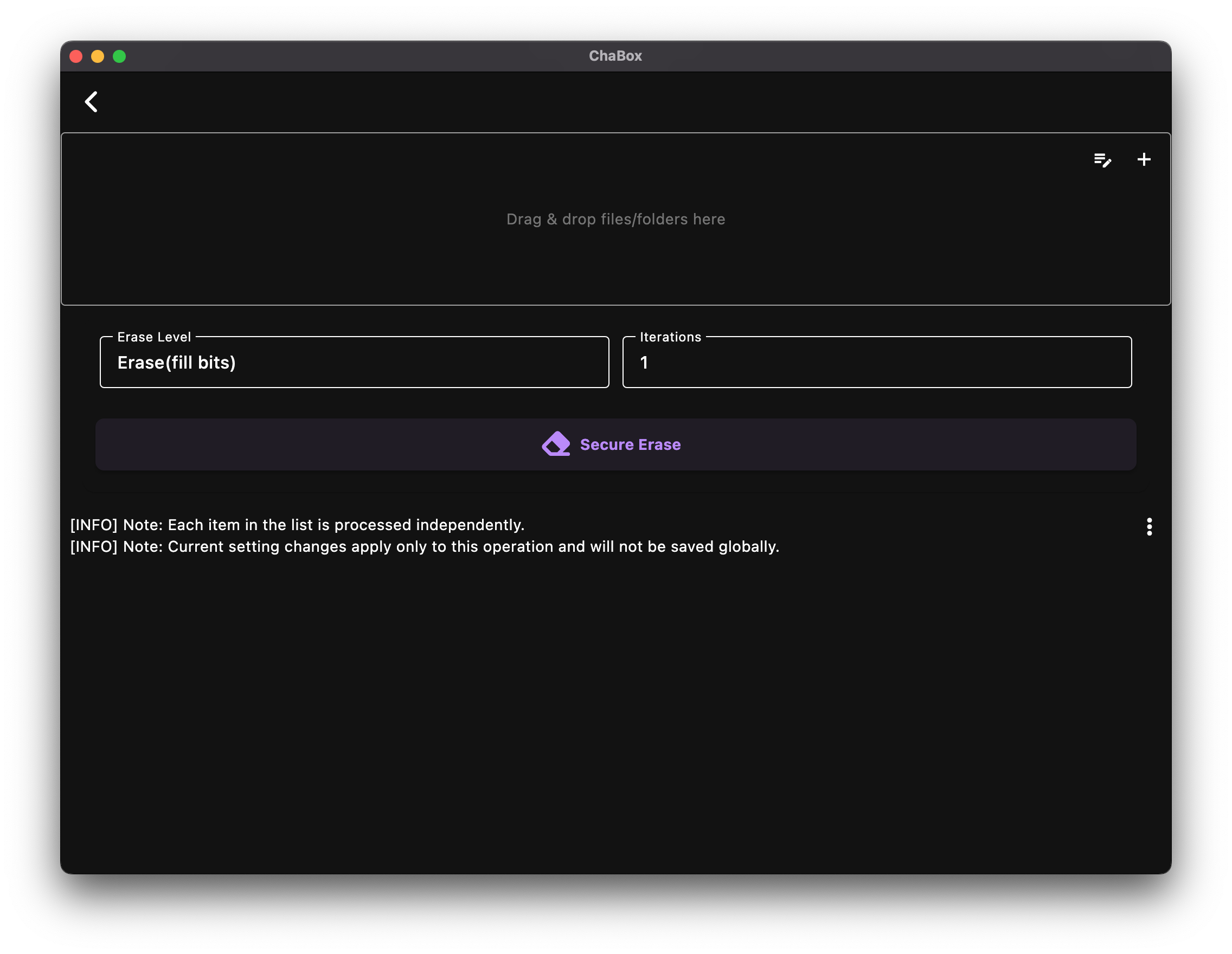
1.4 Secure Erase: Destroy Data Without a Trace
Standard file deletion merely marks storage blocks as free, making recovery easy with standard software. ChaBox's Secure Erase acts as your physical-grade digital paper shredder:
- Local Physical Destruction: Targets and overwrites the physical blocks of files on your local storage. Supports drag-and-drop batch operations for multiple items.
- Customizable Wiping Strength: Before executing, you can fine-tune the wiping algorithm (level) and overwrite passes (rounds). Increasing the rounds ensures that the data is physically unrecoverable by any data recovery tools.
- Mobile Note: On mobile, Android / iOS sandbox restrictions apply, so ChaBox can only access and securely erase files inside its own app sandbox.
1.5 Your Digital Lifeline: Secure Password
Before executing your first encryption, please pay close attention to your password:
- Auto-Generated: ChaBox generates a high-entropy, cryptographically strong random password locally on its very first launch.
- Local Independent Storage: Your password is encrypted and stored solely on your local hardware. It is never uploaded to any cloud server, preventing online data breaches.
- Backup, Backup, and Backup!: This is our most critical reminder! Use the Left Drawer Menu under password management to "Export to File" and save your password backup on a separate physical medium (such as a USB drive). If you lose your password and have no backup, all your encrypted files will be lost forever.