2. App Settings & File Management
As an extension of the Quick Start guide, this chapter will walk you through the two core foundational components of ChaBox: Global App Configurations and the Local File Manager.
2.1 Global App Configurations
Click the three-line menu button in the top-left corner of the home screen to slide out the Left Drawer Menu. Here, you can manage the application's underlying behavior and security policies:
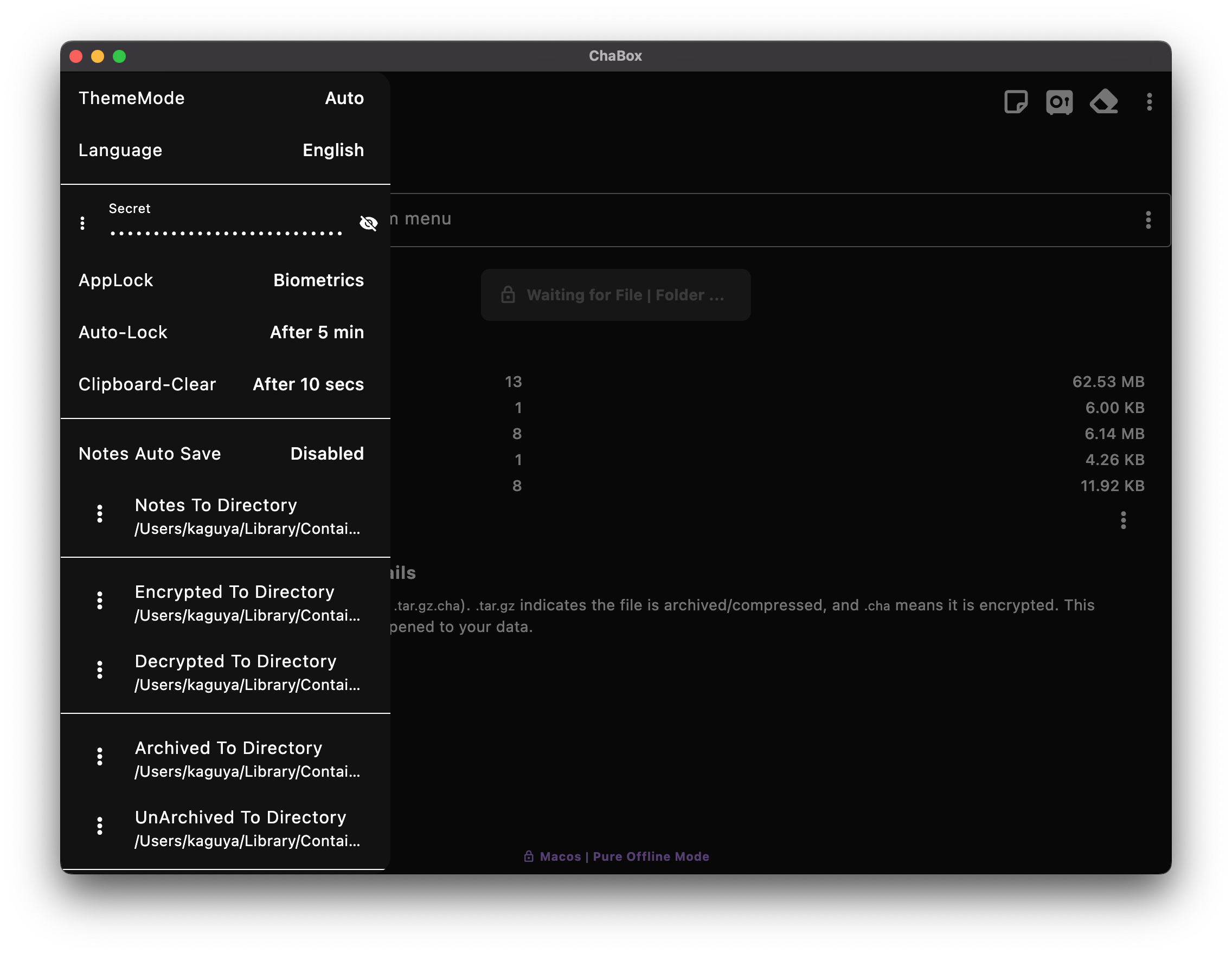
2.1.1 Advanced Password Management (Lifeline)
Your password is the master key to your data. The drawer menu provides a full suite of password management options:
- Generate New Password: Generates a high-entropy, cryptographically strong random password.
- Store Password: Securely updates and records your current password locally for use in automatic encryption/decryption operations.
- Password Backup (Import/Export): We strongly recommend using the "Export to File" feature to back up your password. Store the backup file on an external physical medium (such as a USB drive), which is the only way to recover access if the password is lost.
[!CAUTION] Password Change Warning: Your password is encrypted and stored solely on your local device. If you decide to change to a new password, you must decrypt and restore all files encrypted under the old password BEFORE making the change. Once the password is changed, the new password cannot unlock historical files encrypted with the old password.
2.1.2 Hardening & Directory Configurations
- Physical Protection Hardening:
- App Lock & Auto-Lock Screen: Set an entry PIN and configure the screen to auto-lock when idle, ensuring your active session remains secure even when you are away from your device.
- Comprehensive Leak-Proof Design: System-wide screenshot and screen recording are disabled by default. On mobile platforms, the interface is automatically obscured when switching apps to prevent accidental data leaks.
- Targeted Clipboard Auto-Clear: Because mobile operating systems impose restrictions on frequent clipboard access, this feature is selectively triggered only when viewing/copying password text or editing Secure Notes to clear sensitive fragments and prevent third-party apps from scraping your clipboard history.
- File Output Directory Settings: You can assign dedicated output directories for "Archive", "Encrypt", "Secure Notes", and "Decrypt" operations. Isolating these folders ensures that your tool outputs do not clutter your private assets, keeping files organized and secure.
2.2 Unified Local File Manager
While the file manager is technically not a settings panel, it is the key interface for organizing your notes and sensitive assets. In ChaBox, "Secure Notes" and the "File Vault" share the same efficient file management system.
It consists of two core components:
2.2.1 Intuitive File List
The file list provides real-time monitoring and management of all files within your encrypted directory:
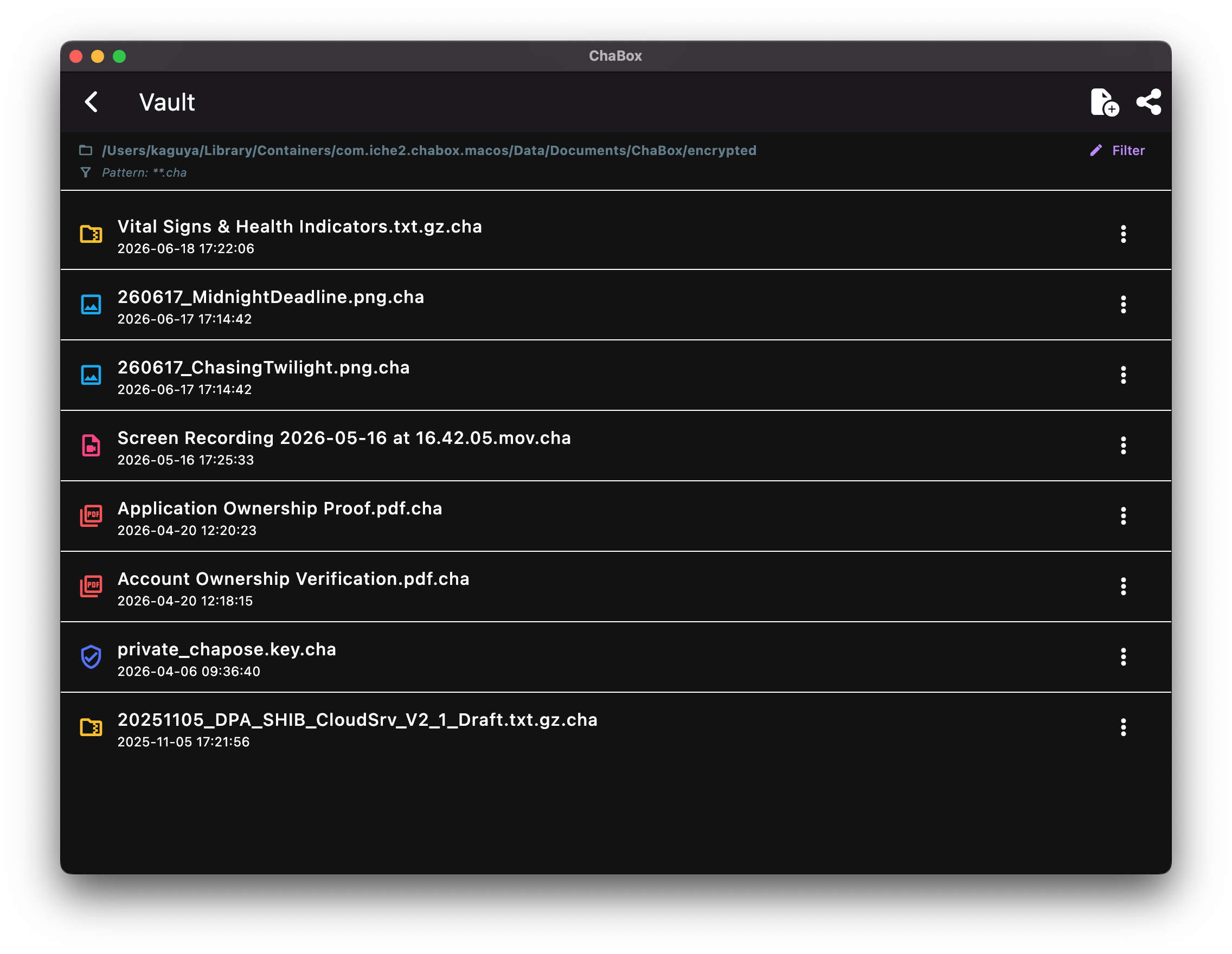
In the top-right corner of the list view, we have provided two quick-access buttons to help you easily move files between ChaBox and other apps on your phone or computer: * Import (Add File): Click this button to select files from your device's storage (such as photos or folders) and add them directly to the current directory. * Share (Share File): Click this button to pack the files in the current list and send them to external applications (such as cloud storage or email), allowing you to "save as" or back up your files externally.
- Recursive Directory Support (Powerful Hierarchy Management): The file list supports directory recursion. This means that once you set up an output directory, you can still create custom multi-level subfolders inside it to organize your files. The list will traverse and render the entire folder tree seamlessly.
- Visual Type Classification: The left side of each list item displays unique icons and distinct colors based on file format (e.g. images, documents, compressed packages), allowing you to identify file types at a single glance.
- Quick Action Menu: The right side of each list item features a quick action menu (usually a three-dot button). Clicking it opens the following operations:
- View: Decrypts and previews files directly in memory (restricted to text and image formats, and never generates temporary plaintext files on disk, ensuring absolute security).
- Share (Share File): Send the individual file to an external application for quick backup or transfer.
- Copy, Move, and Delete (including physical overwriting via Secure Erase).
2.2.2 Powerful File Filter
When your file library grows, click the "Filter" button at the top of the list to call up a powerful filtering panel:
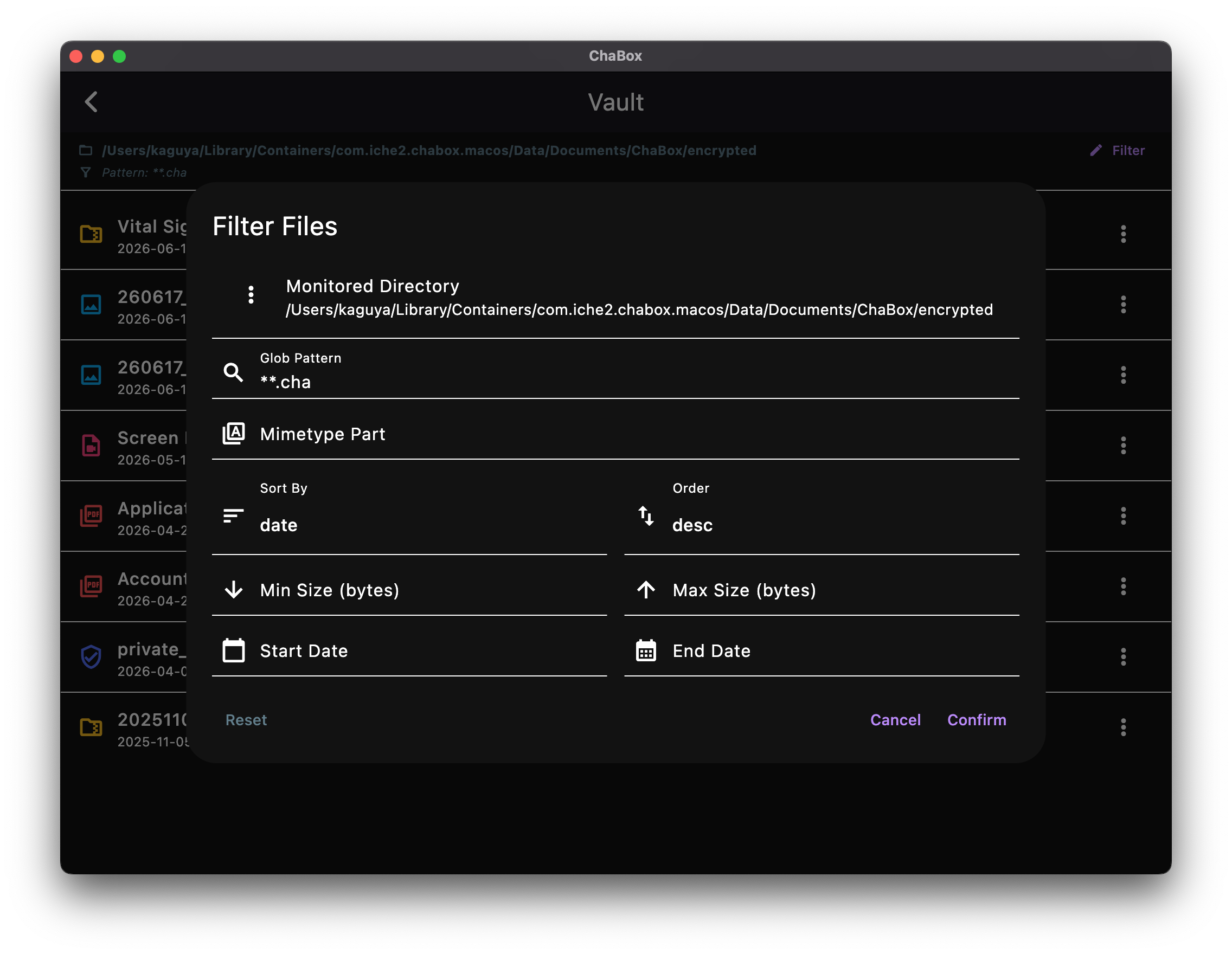
- Multi-Dimensional Matching:
- Path Filtering (Desktop more flexible): The file manager is highly versatile. On desktop, you can target and select any local folder for deep searching across drives and connected storage. On mobile, sandbox restrictions apply, so only directories inside the app sandbox are accessible.
- Glob-style Wildcard Matching: Supports Glob-style wildcard syntax to quickly locate files across names and path segments. For example:
*.txtfinds all.txtfiles in the current folder.**/*.txtfinds all.txtfiles in the current folder and all subfolders.secret/**/*.chafinds.chafiles under thesecretfolder at any depth.*diary*finds all files whose names contain "diary".- Tip: use
**/for cross-folder search, and*for same-folder search.
- File Format Filtering (Type Matching): Allows filtering directly by general file categories. For example, you can choose to display only "Images (image)" or "Videos (video)" without having to type out complex file extension combinations. This filtering is powered by the app's MIME type recognition (
mimetype). - Note: If you want more precise control, open the side settings panel’s file type configuration to load your own extended file formats. This is a global setting that affects:
- the recognition strength of the
mimetypefilter, allowing more custom extensions to map correctly to file formats; - file type icons and classification in the list, so files appear under the right categories;
- the automatic encrypt/decrypt logic for determining whether a file is text — if a file is not recognized as text by default, these rules can make the logic handle it properly.
- the recognition strength of the
- Secondary Fine-Filtering: Refine your search based on file size range (e.g. finding files larger than 10MB) or modification date range (e.g. finding files modified in the past week).
- Flexible Sorting: Sort your filtered results by size, date, or name in ascending or descending order for quick retrieval.
2.2.3 Best Practice: Desktop vs. Mobile Usage
ChaBox's unified local file manager actually has two sequential capabilities: 1. select a directory; 2. filter within that directory.
These two layers behave differently depending on the platform:
- Mobile (Android / iOS): You can only select and manage directories inside the app sandbox. External directories outside the sandbox are not accessible. On mobile, the file manager is primarily for handling sandbox files and the output directories configured under "File Output Directory Settings." For cross-device transfer or backup, we recommend using cloud storage as a relay for encrypted files.
- Desktop (Windows / macOS / Linux): You can use "File Output Directory Settings" to specify directories outside the sandbox, allowing ChaBox to manage files directly on external drives, shared folders, or regular local directories.
Also, file manager directories and cloud backup serve different purposes:
- File manager directories are for storing files in paths that ChaBox can manage directly;
- Cloud backups are for keeping encrypted copies in external cloud storage.
For encrypted files, keeping multiple copies is safe as long as your password remains secret. Therefore:
- Mobile recommendation: use the file manager inside the sandbox, and use cloud storage as needed to relay encrypted files;
- Desktop recommendation: manage files locally, and also back up encrypted files to cloud storage for an additional layer of protection.
Next Step: Deep Dive: Atomic Professional Tools