3. Deep Dive: Atomic Professional Tools
The home screen's "smart-sensing" one-click encryption/decryption is suitable for most daily quick operations. However, when you need precise control over output directories, bulk file processing, or custom parameter tuning, ChaBox's five "atomic" professional tools are your best choice.
These tools share a highly consistent layout and user interface, designed to provide a pure, streamlined professional workflow.
3.1 Unified UI Layout Logic (Taking "Archive" as an Example)
Since all five professional tools share the exact same interface layout, we use the "Archive" tool as a representative example to explain their common operations:
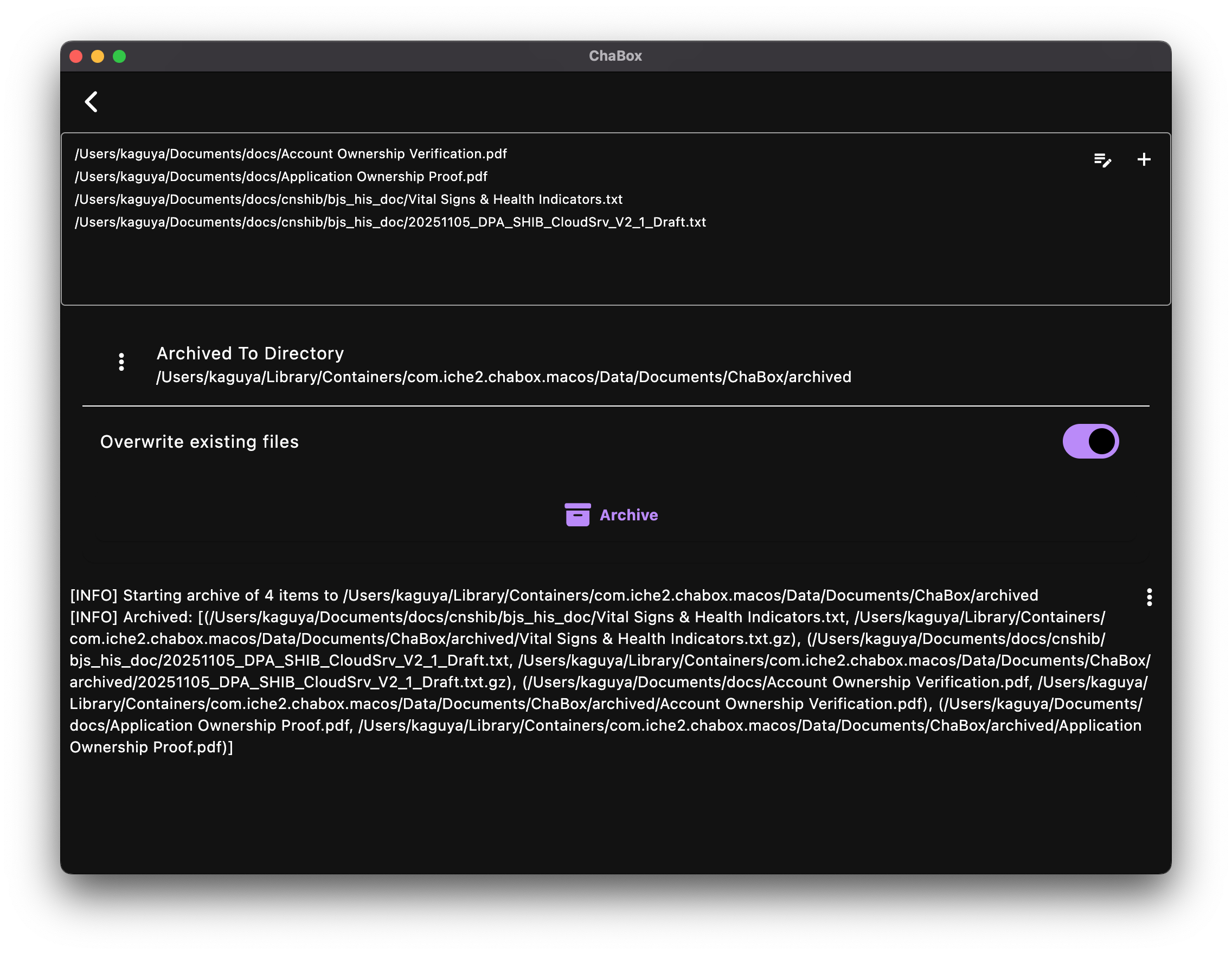
The interface of every professional tool is split from top to bottom into three functional sections:
1. Top: Source Path Management (List-Driven)
- Drag-and-Drop: Easily drag and drop multiple files and folders from your system file explorer directly into this area.
- Manual Add: Click the
+button on the right side to manually browse and add specific items via a file selector. -
Batch Path Editor: Click the "Edit" icon (pencil symbol) to open the path source management window:
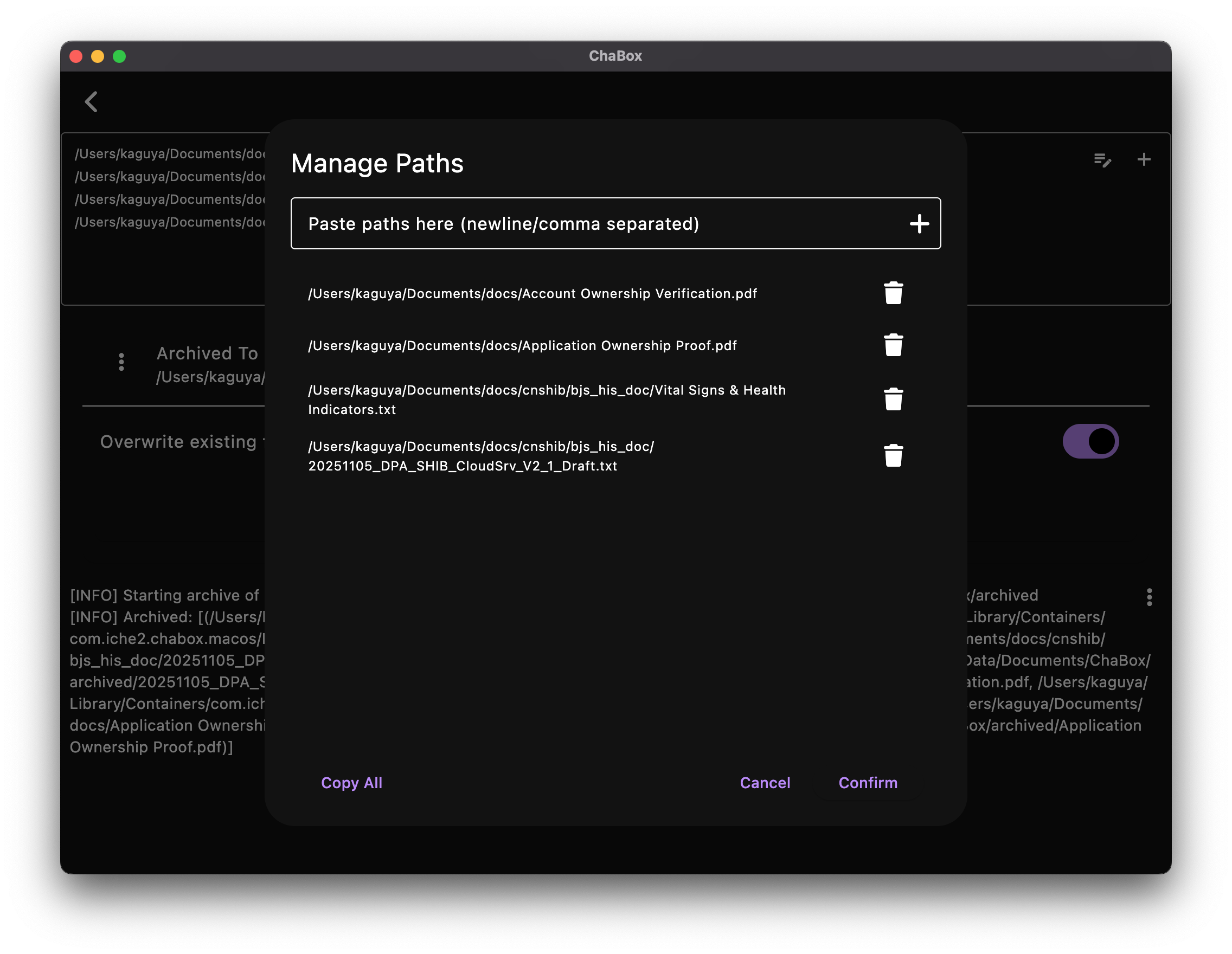
- Quick Paste: You can directly paste one or more file paths copied from your clipboard (one path per line or separated by commas).
- Manual Selection: If you prefer to select files/folders manually rather than pasting paths, you can close this dialog and click the
+button on the main page.
2. Middle: Parameter Control & Execution
- Parameter Snapshots: Initial parameters (such as output directory, overwrite behavior, and wiping levels) are automatically loaded from your Global Settings to maintain your usage habits.
- On-the-Fly Adjustments: You can temporarily adjust the execution parameters (such as output folders) here. These adjustments only apply to the current run and will not overwrite your global configuration.
- Duplicate Name Protection: When exporting multiple files to a single destination directory, check for potential filename conflicts. All professional tools provide a "Overwrite Existing" toggle in this section to prevent accidental data loss from overwriting.
-
Source File Deletion/Preservation (With Security Design Principles): Whether the source files are kept intact or permanently wiped after successful processing is controlled by your Global Settings.
[!IMPORTANT] One-Click "Intermediate Files" & Side-Channel Attack Mitigation:
The convenient "one-click" operations on the home screen are composite tasks (e.g. encrypting a folder actually runs "Archive" first, then "Encrypt"; decryption does the opposite).
-
Why split this into two separate steps? In cryptography, professional encryption tools must physically isolate "packaging/archiving" and "data encryption" to mitigate Side-Channel Attacks (where attackers monitor disk write frequency, memory spikes, or execution time to infer the internal directory structure, size, or file count). By packaging the source files first and then encrypting the package as a single stream, all internal boundary variations are eliminated, maximizing security. This process inevitably produces intermediate files (like
.tgzfiles). -
How to clean them up?
-
If your global setting is configured to "delete source files", the system will automatically wipe and delete these intermediate step files once the final encrypted file is successfully generated.
-
Since the global default is configured to the safer "preserve source files" option to prevent data loss, these intermediate
.tgzarchives will remain in the output directory and must be manually deleted or securely erased.
-
[!TIP] Safe Operation Recommendation:
To guarantee absolute safety, we strongly recommend keeping the global configuration set to "preserve source files" by default. Once you verify that the task has executed correctly, you can manually use Secure Erase to permanently destroy the raw sensitive plaintext files.
-
-
Execution Button: A prominent, centered button. Click it to launch the batch operation.
3. Bottom: Real-Time Visual Logs
- Instant Feedback: The result of each step (success or failure reasons) rolls by in real time in the log window below.
- Log Copying: Supports one-click copying of the entire log, making it easy to audit or troubleshoot files after large-scale tasks.
3.2 Detailed Breakdown of the Five Atomic Tools
For clarity, the five professional tools are classified into General Processing Tools and Core Security Tools:
3.2.1 General Processing Tools (No Encryption/Decryption)
These tools are generic file management utilities used for physical cleanup and packaging:
- Secure Erase
- Tool Focus: Actively overwrites file blocks on storage media to destroy sensitive remnants.
- Details: The underlying secure wiping concept is explained in Quick Start: Secure Erase. In professional mode, it allows batch cleaning by queuing up files and folders from disparate paths for secure destruction.
- Archive
- Batch Archiving: Applies parameters to each item in the path list separately. Note: It does not merge all list items into a single archive, but rather runs independent archiving tasks in batch.
- Smart Selection: Automatically detects source type to optimize the package format:
- Text/Code Files: Compressed directly to Gzip format (generating
.gz). - Folders: Packaged and compressed to
.tgzformat. - Media Files: Already-compressed files (like photos, videos, and PDFs) are simply copied/moved without secondary compression to save CPU resources.
- Text/Code Files: Compressed directly to Gzip format (generating
- Unarchive
- Extraction: Restores
.tgz(directories) or.gz(single files) back to their original file and folder structure.
- Extraction: Restores
3.2.2 Core Security Tools (With Encryption/Decryption)
These tools form the core cryptographic shield of ChaBox, directly encrypting and decrypting file bytes:
- Encrypt
- Scope Constraint: The atomic Encrypt tool only supports encrypting a single unencrypted file.
- Recommendation: To encrypt an entire directory, use the "Archive" tool to package it first, or use the home screen's one-click convenient encryption.
- Design Intent: This prevents the silent generation of hidden temp files during folder encryption, keeping the process transparent and securing professional operations.
- Decrypt
- Restoration: Restores
.chafiles back to their original plaintext state. - Subsequent Steps: If the decrypted output is an archive package (
.tgz), you must manually use the "Unarchive" tool to extract it. For a unified experience, use the home screen's convenient one-click tool to automate this sequence.
- Restoration: Restores
Next Step: Frequently Asked Questions FAQ